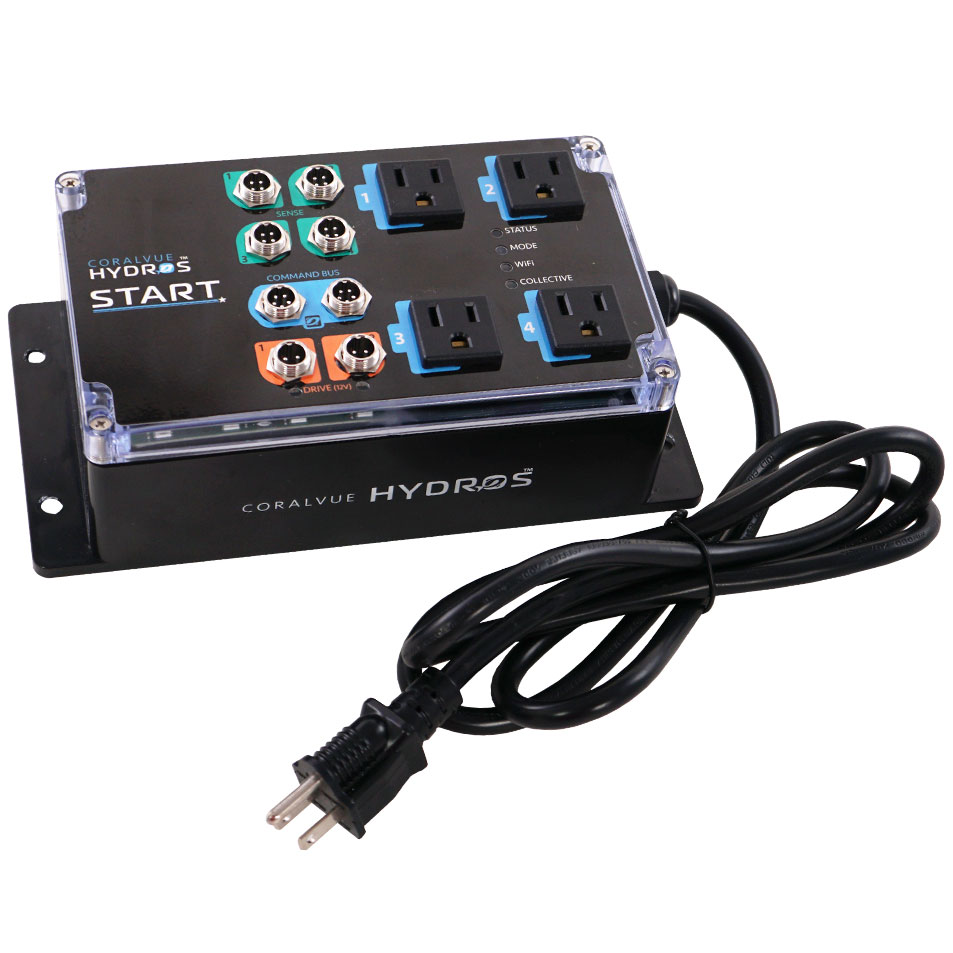
Step 1: Register the Device
- Download the HYDROS app from the Apple App or Google Play Store.
- Please follow the instructions here to connect your device to WiFi and register it.
Step 2: Update the Firmware (if needed)
- Firmware updates are released frequently, and your device may not have the latest version installed. If your device requires a firmware update, please install it before you begin configuring it. You can follow the instructions here to update your device firmware.
Step 3: Add to Collective (optional)
Q: What is a Collective?
A: HYDROS devices can link up to form one seamless system! This means you won’t need to manage and adjust each individual device. The HYDROS app will gather all your sensors, probes, force, drive, and 0-10V ports together, making it easy to configure and control them as a unified presence!
Q: This is my first and only device. Do I need to create a collective?
A: No, you don’t need to! We totally get that upgrade itch, and when you purchase your next HYDROS device, the fun begins! You can start by creating a collective with your first device and then quickly add your second device immediately after. It’s all about making your setup just the way you like it!