

The HYDROS controllers are equipped with color-altering LEDs, which enhance their aesthetic appeal while also serving functional purposes. These lights facilitate users in discerning modes, alerts, overall statuses, and connectivity conditions.
These controllers are equipped with designated LEDs for Status, Mode, WiFi, and Collective. The models include XP8, Launch, Minnow, Sole, X10, Maven, and Kraken.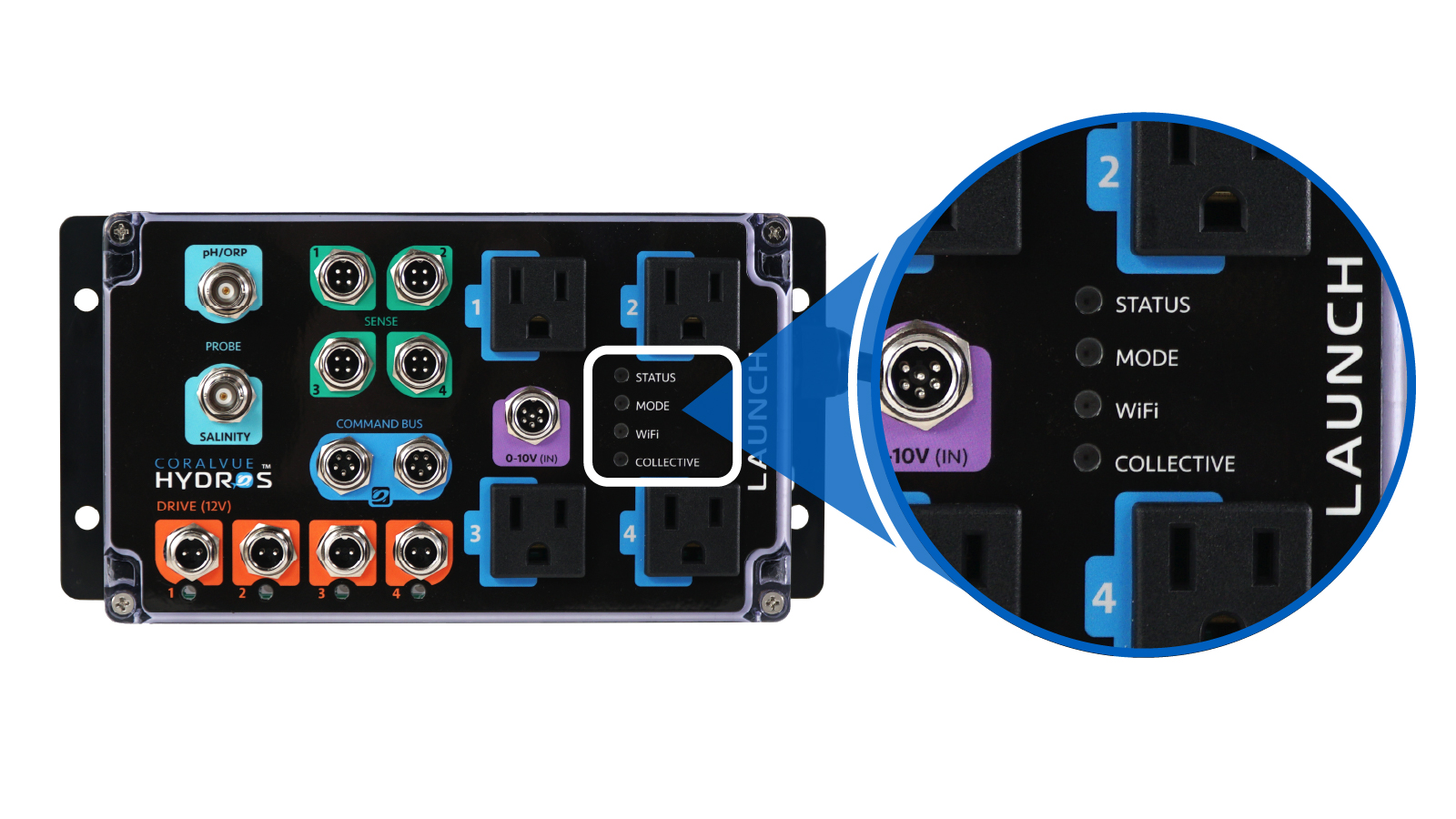
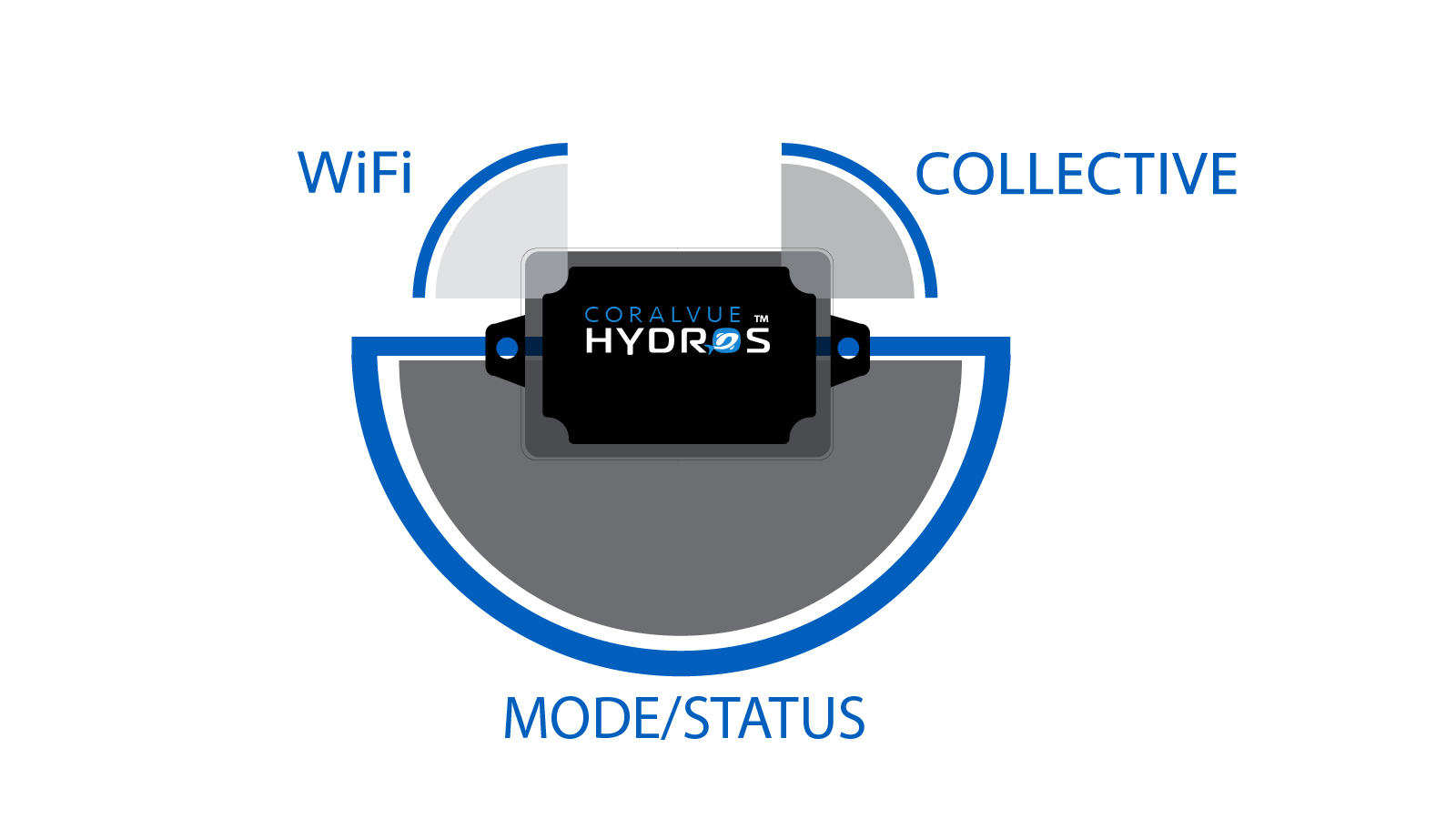
These controllers have lights on the outer edge. These include X4, X2, X3, XS, XD, and WaveEngine V1/V2/LE.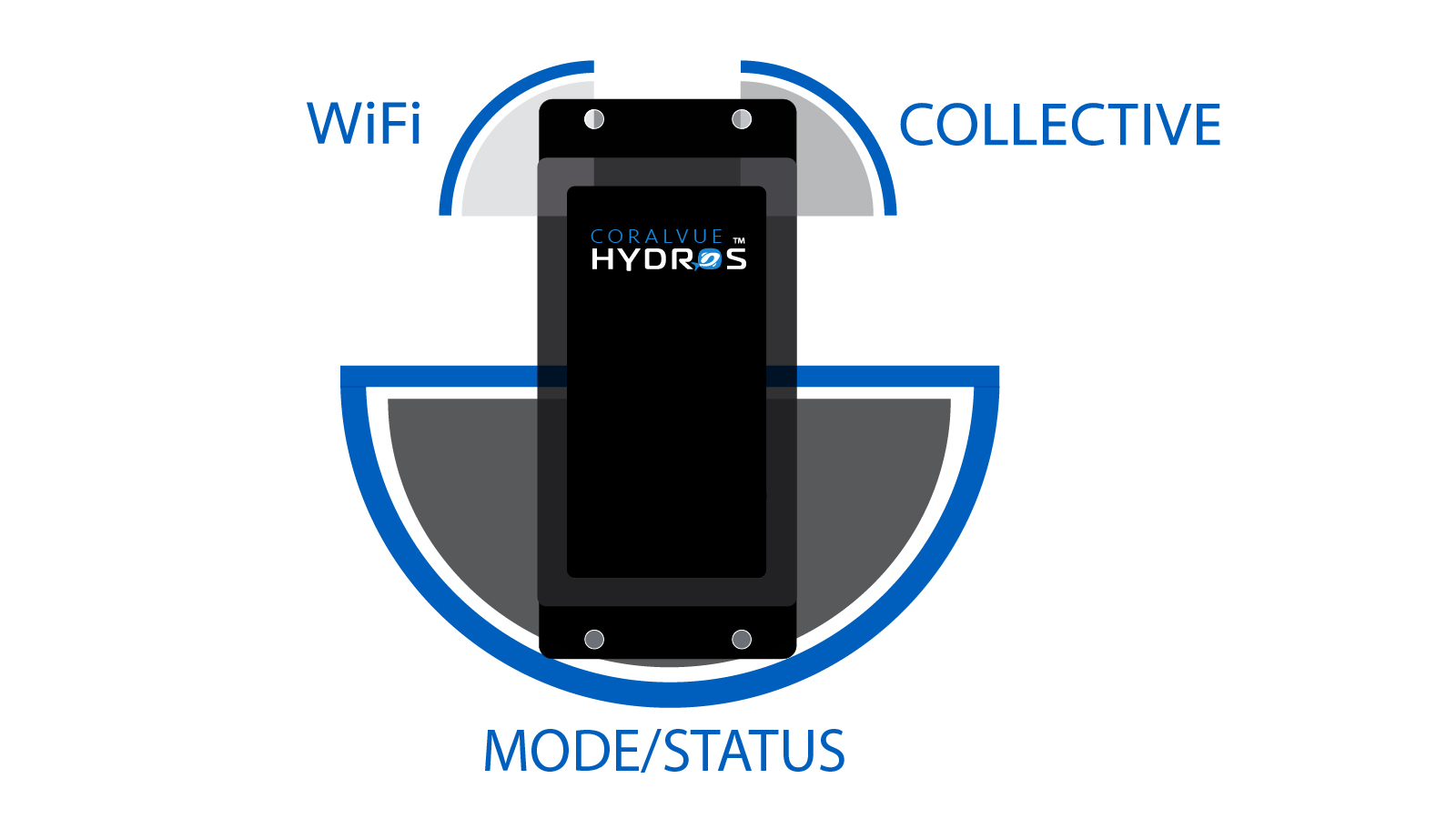
This LED will convey the status of the Collective as a whole.
| White | This is the collective Master. There are no errors to report. |
| Green | This is a collective secondary device. There are no errors to report. |
| Pink/ Purple |
This is a collective Master, AND there is an error with the collective. One or multiple collective devices are not responding.
|
| Red | This is a collective “Secondary,” and there is an error with the collective. One or multiple collective devices are not responding.
|
| Yellow | Firmware mismatch. One or multiple devices are running a firmware version different from the rest.
|
| Amber/ Orange |
Configuration mismatch. One or multiple devices are running a configuration version different from the rest.
|
This LED will conveys the current state of the device’s connection to WiFi and the HYDROS Cloud.
| Green | Everything is OK.
|
| Yellow | The device is connected to WiFi but cannot communicate with the HYDROS Cloud.
|
| Amber/ Orange |
The device is connected to WiFi, but the router must still assign an IP address.
|
| Red | The device is unable to connect to WiFi and the internet.
|
| Pink/ Purple |
The device DOES NOT have a configured WiFi SSID and password. It is waiting for the user to configure one.
|
Controllers with Dedicated LEDs: This LED shows the command bus status.
| Green | Everything is OK. |
| Red
XP8/Launch X10/Sole Maven/Kraken |
The device is only receiving power from the command bus. It is NOT receiving power from the power supply brick connected to the device’s white “Power” port.
|
Controllers without Dedicated LEDs: These LEDs show if an “Audible” alarm is triggered.
| Red
X4/X2 X3/XS/XD WaveEngine (V1/V2/LE) |
There is an active Alarm.
|
These LEDs change color based on the active Mode. The Mode itself assigns the color. The default NORMAL Mode color is Blue.
There are two circumstances in which ALL controller LEDs would be off.