Add Lighting Schedule
Want to have the HYDROS turn on your lights in the morning and then turn them off in the evening? Do you have dimmable lights? Do you like the HYDROS control to change the intensity?
Things to remember about Lighting Schedules:
- You CAN have overlapping lighting schedules
- When two schedules overlap, HYDROS will prioritize the schedule more intensely.
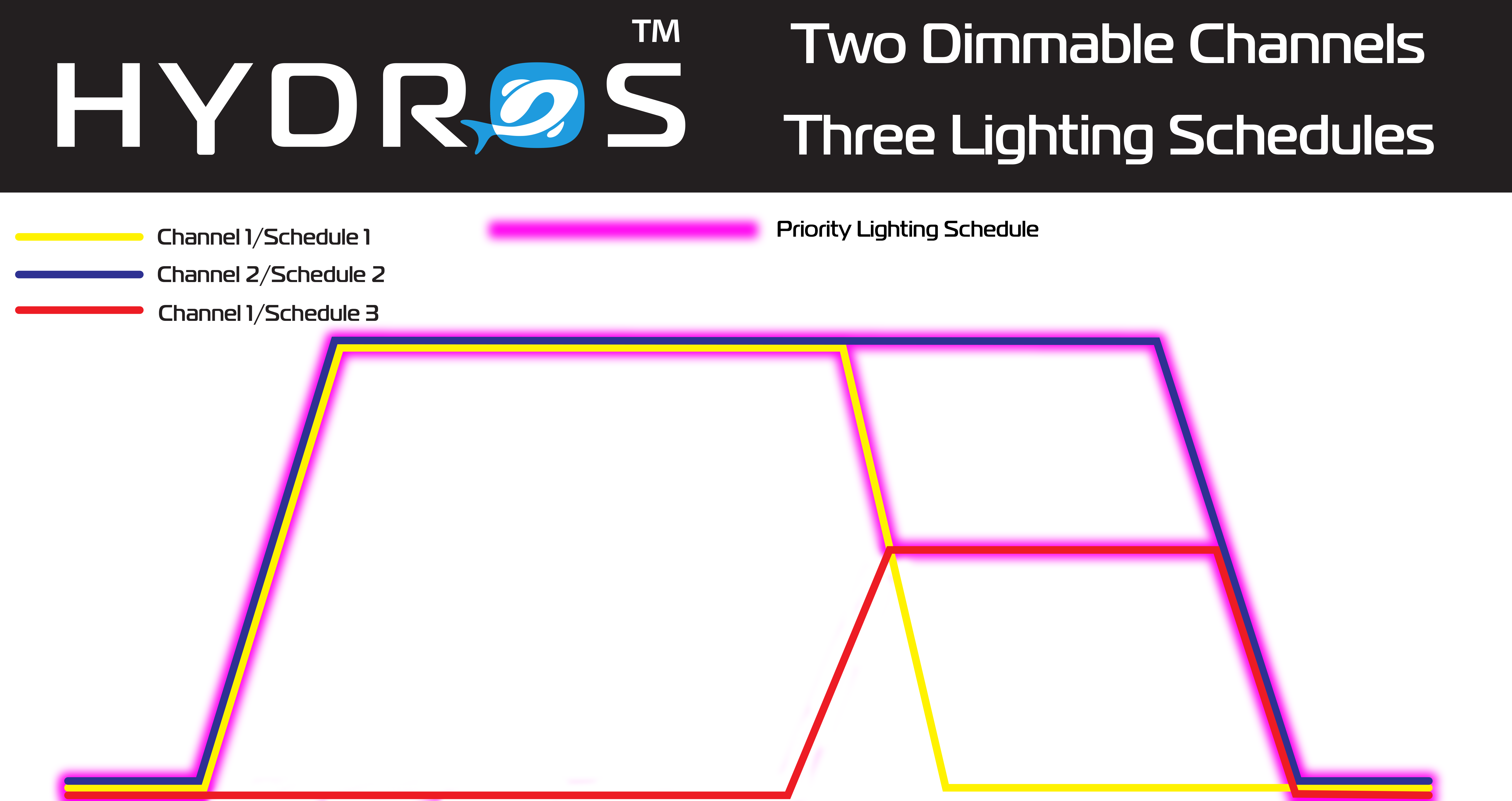
EXAMPLE: A single light with two channels (White + Blue). You can run the lights very white in the first half of the day (to get high PAR values and give corals the necessary energy) and reduce the whites by 50% in the second half to give your aquarium a more pleasing blue color. To accomplish this simple yet efficient schedule, you must create three schedules.
- Schedule 1 will run Channel 1 (White) at 100% from 9 a.m. to 3 p.m., including a 30-minute ramp and dim period.
- Schedule 2 will run Channel 2 (Blue) at 100 % from 9 a.m. to 9 p.m., including a 30-minute ramp and dim period.
- Schedule 3 will run Channel 1 (White) at 50% from 2:30 p.m. to 9 p.m., including a 30-minute ramp and dim period.
- At 9 am, Schedules 1 and 2 will ramp Channels 1 and 2 to 100%.
- At 2:30 p.m., Schedule 1 will begin dimming Channel 1. Simultaneously, Schedule 3 starts ramping up Channel 1. However, HYDROS will give Schedule 1 priority since it calls for Channel 1 to run at a higher intensity.
- At 2:45 p.m., Schedule 1 and Schedule 3 reach 50% intensity.
- At 2:46 p.m., Schedule 3 remains at 50%, while Schedule 1 reduces to 49%. At this time, HYDROS will give Schedule 3 priority since it is running Channel 1 at a higher intensity. (Channel 1 will remain at 50% intensity)
- At 8:30 p.m., Schedule 2 will begin to dim Channel 2.
- At 8:45 p.m., Schedule 3 will begin dimming Channel 1 while Schedule 2 continues dimming Channel 2.
- At 9:00 p.m., both Schedule 2 and Schedule 3 reach 0%.
Step 1: Create a Light Schedule
- From the main menu, tap on “SCHEDULES.”
- Tap on the + symbol at the bottom right and enter your Presets name.
- Tap Create
Step 2: Configure the Light Schedule
- Type: Select “Light Schedule”
- Variable Light Mode: Here, you can select how the light will ramp up and dim down. In essence, you select what type of curve you will be using!
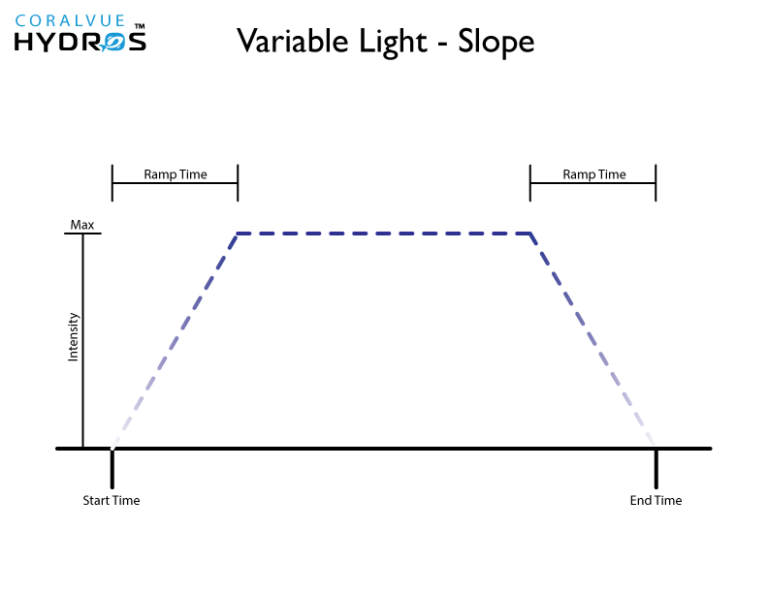
- Slope: The light ramps up from minimum to maximum intensity for a pre-determined amount of time, remains at maximum intensity for a predetermined time, and finally dims down from maximum to minimum intensity.
- Start Time: The time the light starts to ramp up from Minimum intensity
- End Time: The time the light reaches Minimum intensity at the end of the entire interval
- Slope: The time it takes for the light to ramp up and dim down.
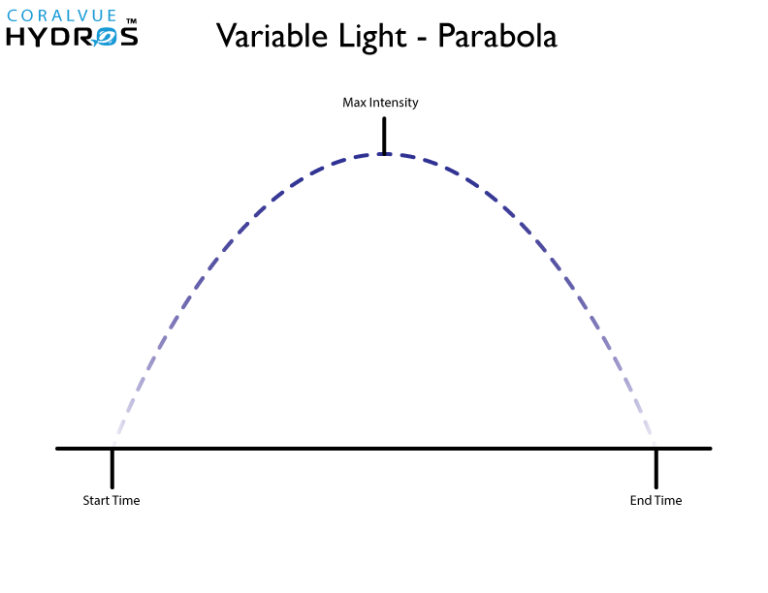
- Parabola: The light will slowly ramp up from Minimum to Maximum intensity, and then, immediately after reaching Maximum intensity, it will begin to dim down back to Minimum intensity.
- Start Time: The time the light starts to ramp up from Minimum intensity
- End Time: The time the light reaches Minimum intensity at the end of the entire interval
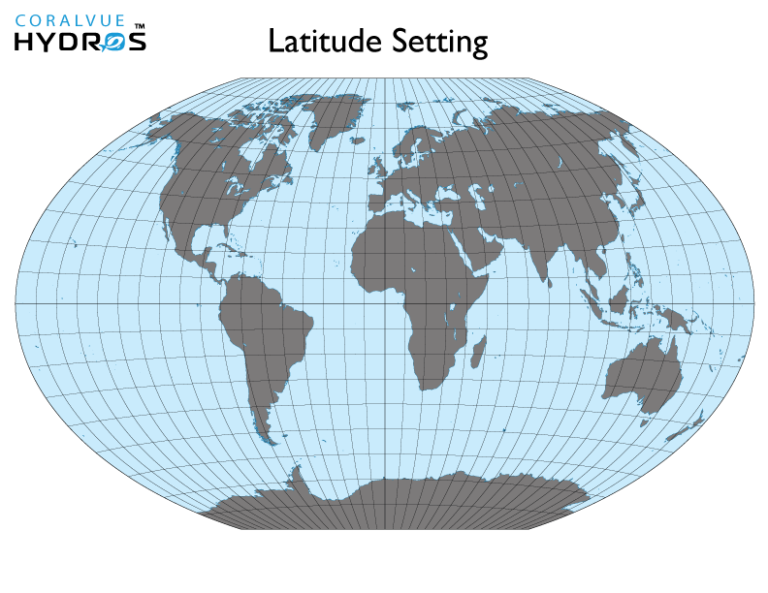
- Latitude: Set your daylight interval to relatively match that of any location in the world. i.e., If in Fiji, the sun rises at 7 am, and the sunset is at 8 pm, then your start time will be 7 am (YOUR local time zone), and the end time will be at 8 pm (YOUR local time zone).
-
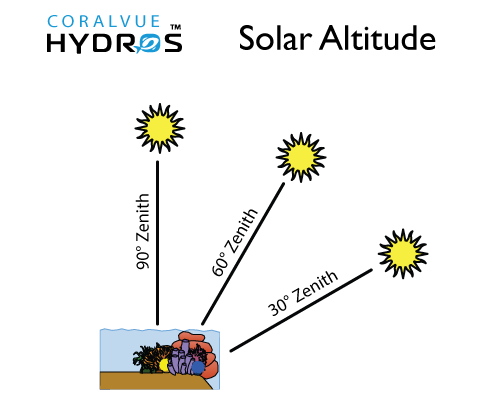
Zenith (Solar Altitude): Here, you can specify the sun’s angle related to the horizon. At 90 degrees, the sun is right above your head.
TIP:
Solar altitude is the sun’s angle relative to the Earth’s horizon and is measured in degrees. At sunrise and sunset, the altitude is zero, and at noon, at latitudes near the equator, it can reach a maximum of 90 degrees (directly overhead).
- Active Modes: This allows you to select the active output mode.
- Schedule: You can create a simple or complex schedule to run the output.
- Depends On: This feature allows you to turn the schedule based on the status of another output. To enable this, select it from the list of available outputs.
- Dependency Mode: This allows you to turn the schedule ON or OFF based on the other output.
- OFF if OFF: Will turn the schedule OFF if the output it depends on is OFF
- OFF if ON: Will turn the schedule OFF when the output it depends on is ON
- ON if OFF: Will turn the schedule ON when the output it depends on is OFF
- ON if ON: Will turn the schedule ON when the output it depends on is ON
- Min Level: This percentage is related to the minimum intensity at which the light can run, as specified in the light output.
TIP: 1% means the minimum intensity specified in the lighting output. If you set the lighting output to run only at 25% or more, 1% means to run the light at the minimum allowed intensity, which equals 25%
- Max Level: This is the maximum intensity at the HYDOS that will run your light fixture.
TIP: 100% here means the maximum intensity specified in the lighting output. If you set the lighting output to run only at a maximum of 75%, it means that when you set this to 100%, it will run the light at the maximum allowed intensity of 75%.
- Light Count: Slide left to right to select the number of light outputs you want to attach to this schedule.
TIP: The Light Count is not a dropdown field. It is a slider. To change the number of Lights, place your finger on the blue number and slide left or right to decrease or increase the Lights.
- Light #: Select the output Lights you want to run on this schedule.
WARNING: If your lights are not listed, please go to the Light Output and enable “Controlled by Light Scheduler”
Step 3: Save
- After configuring the output, tap the yellow bar at the bottom to upload your changes to the cloud and each HYDROS device.