Add Calcium Reactor
A Calcium reactor allows you to replenish Alkalinity and Calcium in your aquarium automatically.
Here is what you’ll need to get started:
- Calcium Reactor unit
- If your reactor comes with it, a pH probe will measure the pH inside the calcium reactor.
TIP: If you still need to add the pH probe as an INPUT, please follow the instructions
here.
- A CO2 Regulator connected to an outlet controlled by HYDROS.
- A feed/output pump is connected to an outlet controlled by HYDROS.
Step 1: Create the Calcium Reactor Output
- From the STATUS screen on your HYDROS app, tap on the three horizontal dots to the right of the OUTPUTS label and select “Add / Edit Output.”
- Tap on the + symbol at the bottom right of the page
- Type in the name of your new output and then tap “Create.”
Step 2: Configure your Calcium Reactor
- Family: Reactors
- Type: Calcium Reactor
- Reactor pH Input: Here, you select the location of the pH probe that is measuring the water pH inside the Calcium Reactor Chamber
- Reactor pH OFF/ON Point: This option allows you to choose the lowest and highest point before the Control turns ON/OFF your CO2 Regulator
TIP: To see a list of all inputs available on MULTIPLE devices, you must first
create a Collective. Otherwise, only inputs on the same device will show.
- Tank Alkalinity Input: If you have an Alkalinity Monitoring Device connected to the Control, this is where you would select it
- CO2 Output Device: Here, you select the location of your CO2 Regulator
- CO2 Power Safe Range: You can set a range for acceptable power usage. If the power consumption exceeds this range, you will receive a notification if you select this option.
WARNING: This option is NOT available if the “Output Device” is assigned to an outlet that cannot monitor power, such as a WiFi Strip outlet.
- CO2 Power Notification Level: You can select the notification level that triggers if the power consumption falls outside the “Power Safe Range.”
WARNING: This option is NOT available if the “Output Device” is assigned to an outlet that cannot monitor power, such as a WiFi Strip outlet.
- If Input / Dependency Unavailable: It allows you to specify the state of the CO2 Output Location if one of the inputs or outputs it depends on is unavailable.
- Enable CO2 Advanced Settings: If you are an expert, you can customize the default CO2 output settings to suit your system better.
- Active Modes: This allows you to choose which mode this output will be active and which mode should turn OFF.
- Depends On: This feature allows you to turn the output based on the status of another output. To enable this, select it from the list of available outputs.
- Dependency Mode: This allows you to turn the output ON or OFF based on the other output.
- OFF if OFF: Will turn the current output OFF if the output it depends on is OFF.
- OFF if ON: Will turn the current output OFF when the output it depends on is ON.
- ON if OFF: Will turn the current output ON when the output it depends on is OFF.
- ON if ON: Will turn the current output ON when the output it depends on is ON.
- Is Invisible: If you choose to hide the input from the status screen, it will only become visible on pages that have “Show Invisible” selected.
Step 3: Save
- After configuring the output, tap the yellow bar at the bottom to upload your changes to the cloud and each HYDROS device.
Appendix A: Reactor pH Tracks Alkalinity
Did you know that HYDROS has a feature that monitors the Alkalinity level in your aquarium and automatically adjusts the pH level inside your calcium reactor? It’s pretty cool because the Calcium Reactor media doesn’t melt at a single pH point. Instead, it gradually melts more and more as the pH drops. For instance, when the pH level inside the reactor is high (around 7.2), the media melts at a very low rate. However, as the pH in the water drops and gets closer to 6.7, the media melts at a higher rate. This means that with HYDROS, you can ensure your aquarium stays in top condition without worrying about the pH levels.
The HYDROS Controller activates the Calcium Reactor by turning the CO2 ON/OFF and adjusting the pH level inside the reactor based on the Alkalinity reading. It ensures the pH level is within the Alkalinity range by dynamically making the pH chase the Alkalinity reading.
If your Alkalinity is high, HYDROS will run the reactor pH at a higher level to “dilute” the effluent’s concentration and “maintain” your Alkalinity. However, if your Alkalinity is low, HYDROS will run the reactor pH at a lower level to “increase” the effluent’s concentration and “raise” your Alkalinity.
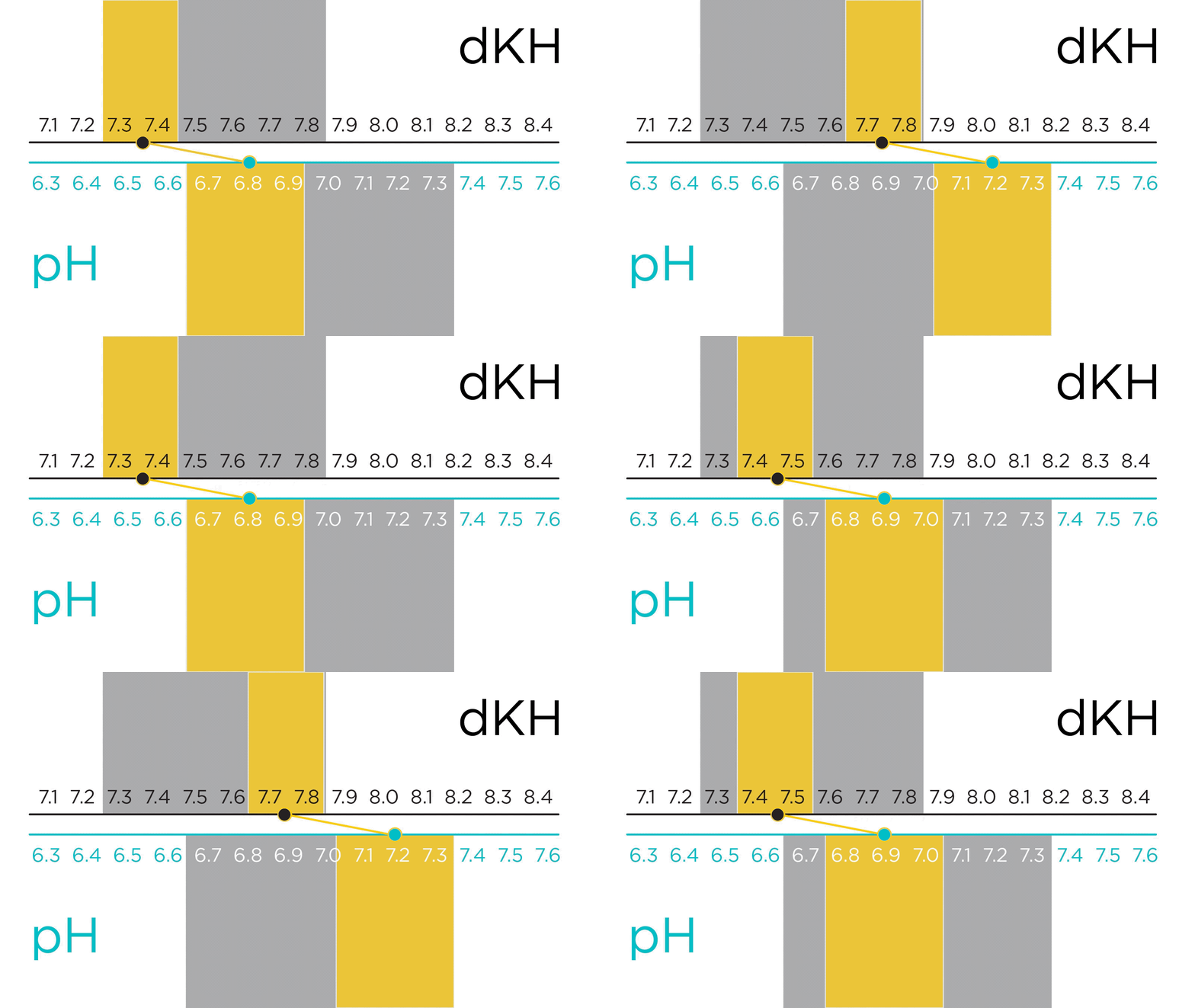
Utilizing a “dynamic method,” the HYDROS system can enhance stability by adjusting your reactor’s pH levels according to the Alkalinity readings.
For this option to work correctly, you must:
The HYDROS controls the turning on and off of the Calcium Reactor by regulating CO2 levels and adjusting the pH level inside the reactor in response to the Alkalinity reading. This ensures that the pH level stays within the desired Alkalinity range. The HYDROS maintains a balance between pH and Alkalinity by making the former follow the latter.
EXAMPLE: Here is an example of a Calcium Reactor setup using Two Little Fishes Reborn Media:
- Alkalinity (min and max) range: 7.5 – 8
- The Calcium Reactor bubble rate is fixed at two bubbles per second.
- The effluent rate is constant. We turn off the pH and allow it to climb to shut off the reactor and prevent it from melting the media. When it reaches above 7.2, the media stops melting.
HYDROS Calcium Reactor OUTPUT setup:
- pH ON Point: 6.7
- pH OFF Point: 7.3
- Alkalinity ON Point: 7.3
TIP: Due to the delayed readings in the reactor, we need to make the ON point much lower than the actual alkalinity reading we want to achieve. In this case, 7.5 dKH.
- Alkalinity OFF Point: 7.8
TIP: Due to the delayed readings in the reactor, we need to make the OFF point much lower than the actual alkalinity reading we want to achieve. In this case, 8 dKH.
We maintained the alkalinity between 7.65 and 7.91 over the 24-hour period using the numbers above.
Rename Output & Change Icon
- From the STATUS screen, tap on the Output you wish to modify.
- On the popup, tap on the “Gear” icon on the bottom right.
- From the Output setup page, tap on the “Pencil” icon on the top left.
- Type in the new name you wish
- If you wish to change the default icon, tap “Change Icon.”


