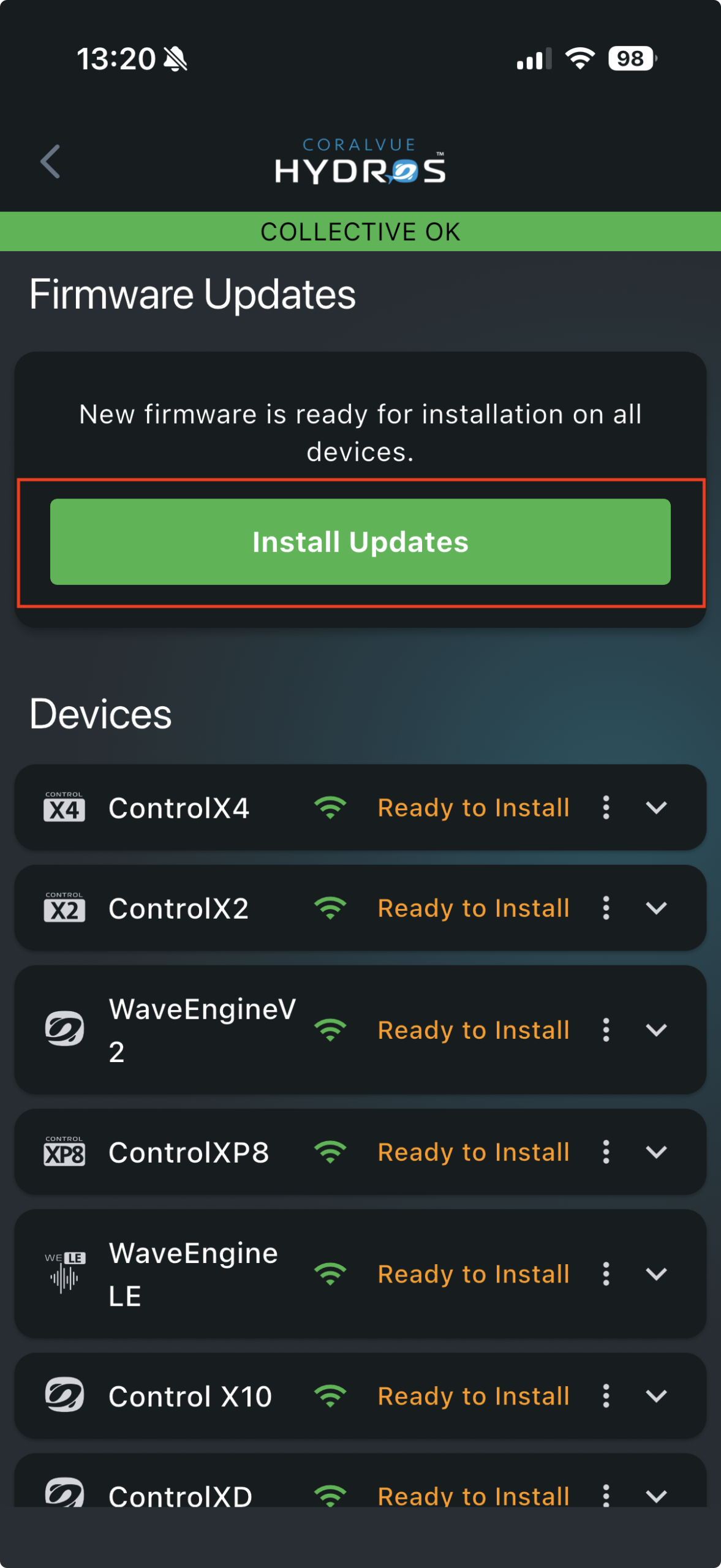
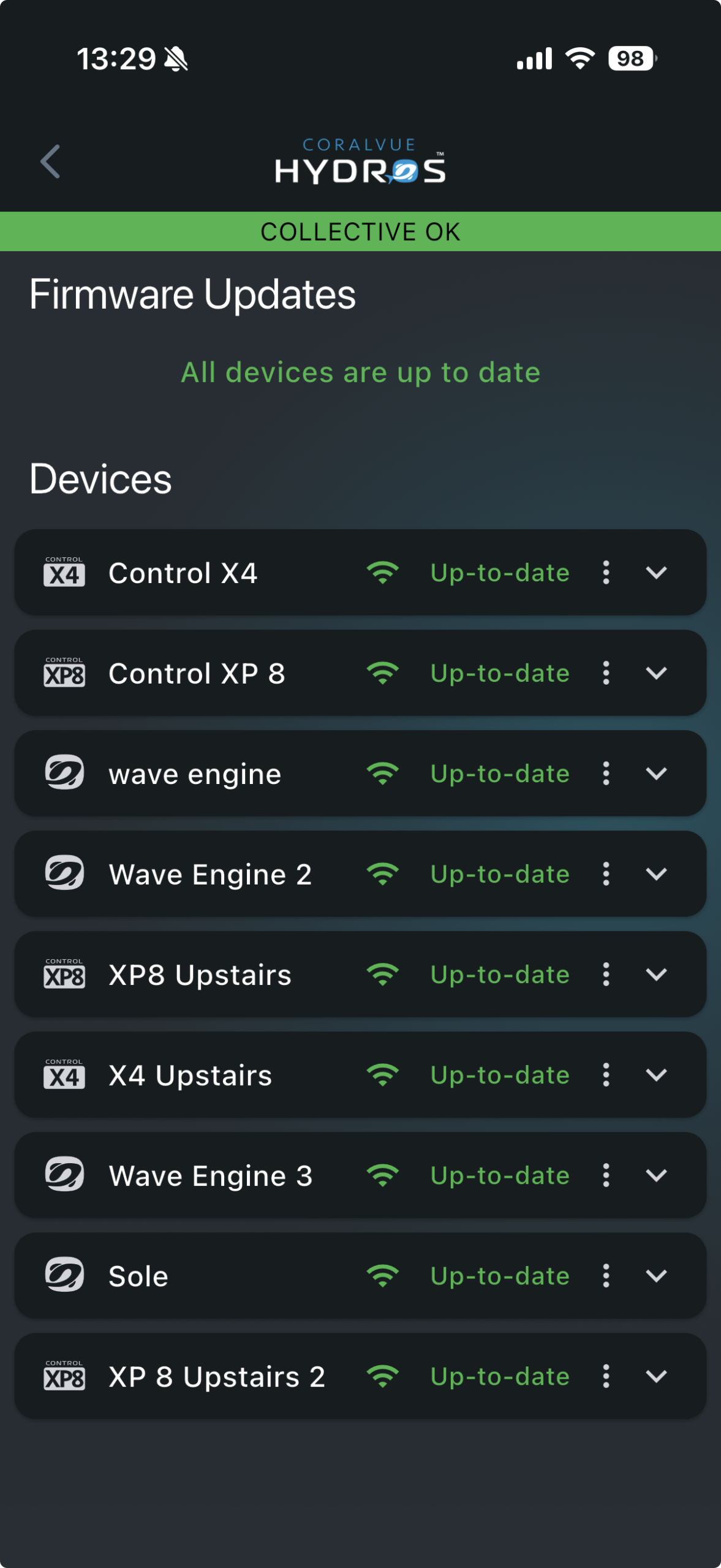
If your HYDROS Control requires a firmware update, the app will notify you when it starts. You can proceed with the firmware update without issues.
WARNING: ALWAYS check your output overrides after a firmware update. We do everything possible to ensure overrides survive a firmware upgrade and reboot, but it is always best to take the time to verify that all your overrides are correct.
Step 1: Restart the Devices
We highly recommend that you restart your devices before the update.
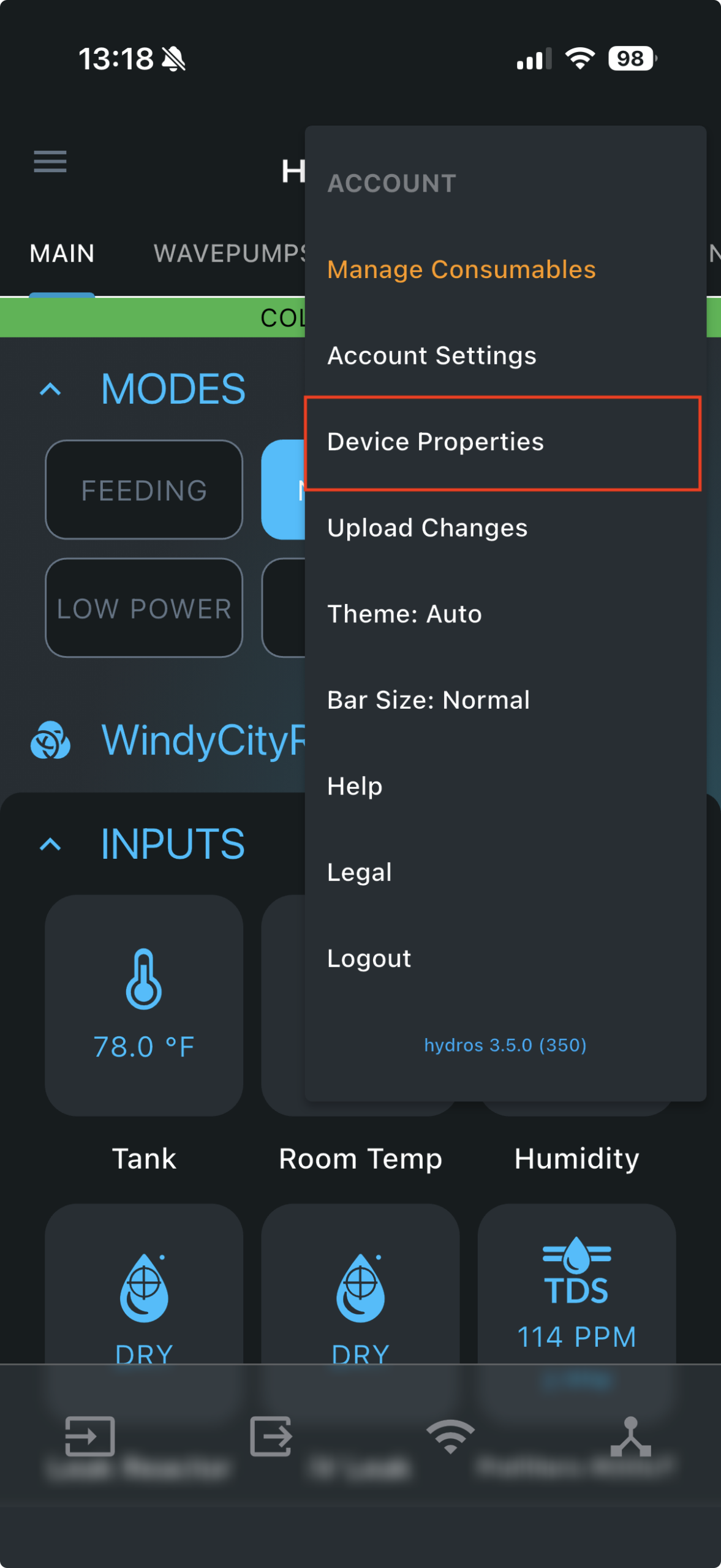
- Tap on the upper-RIGHT-hand corner of the STATUS screen and select “Device Properties.”
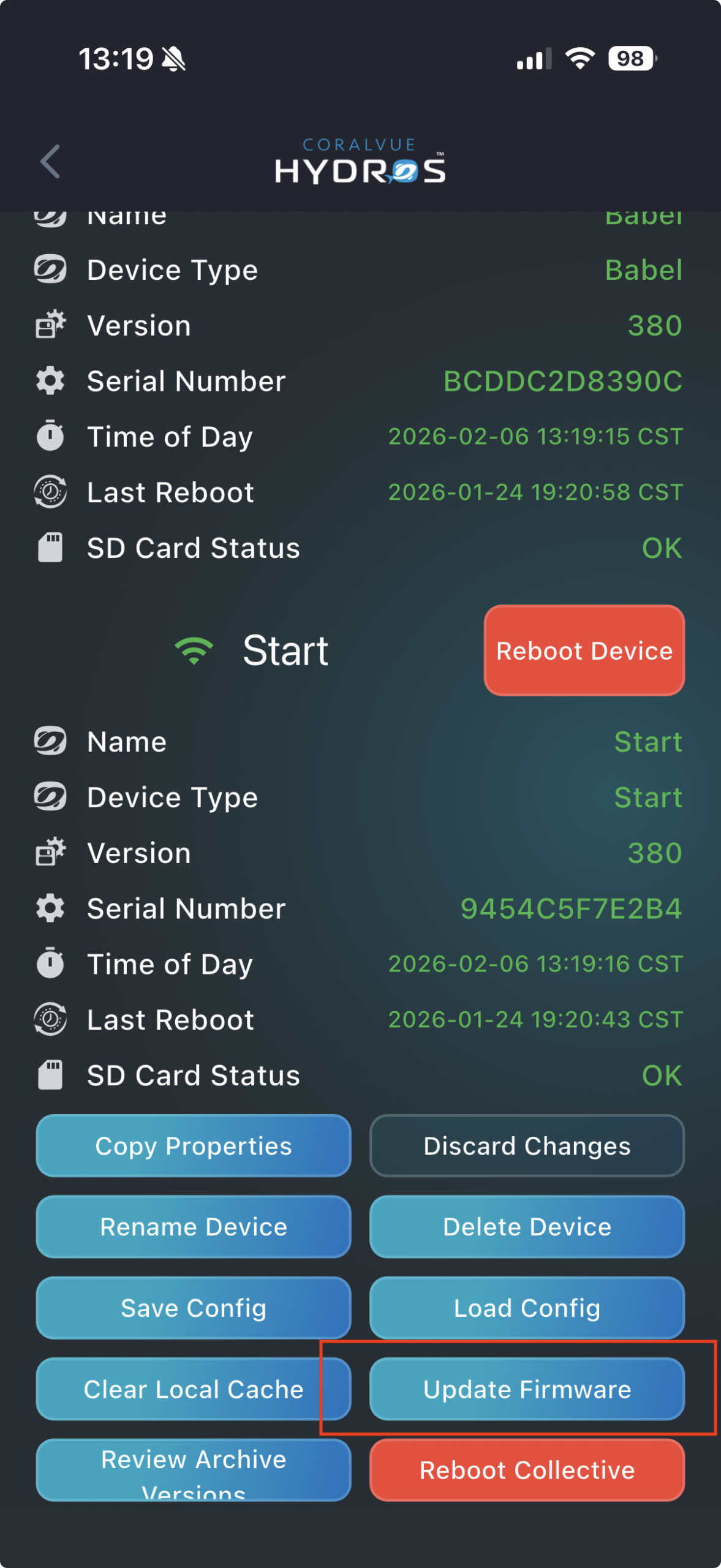
- If you have only one device, tap on “Reboot Device.” If you have a collective, tap on the “Reboot Collective” button.
- Wait until your devices are back up and you can access the STATUS screen.
Step 2: Download the Update
The HYDROS control allows you to download the update file WITHOUT installing it. It comes in handy when you’re away and want to download the update, so you can install it right away when you get home. Also, if the download fails, your unit will not lock up. Instead, it will fail the download; you can manually restart it.
TIP: It is best to download the firmware on ALL devices before installing it on ANY device. It will ensure all devices use the same firmware version and prevent incompatible firmware from being deployed across the collective.
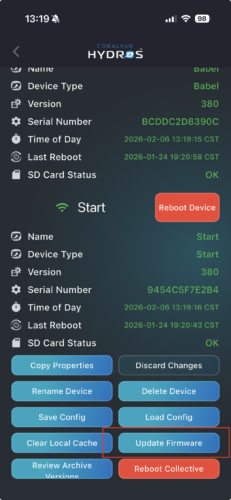
- Tap on the upper-RIGHT-hand corner of the STATUS screen and select “Device Properties.”
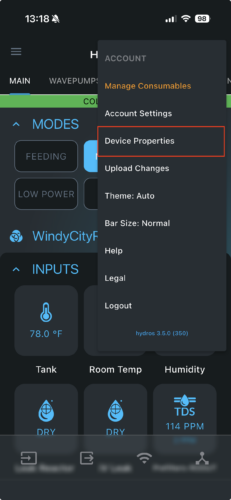
- Scroll down and tap on “Firmware Update.”
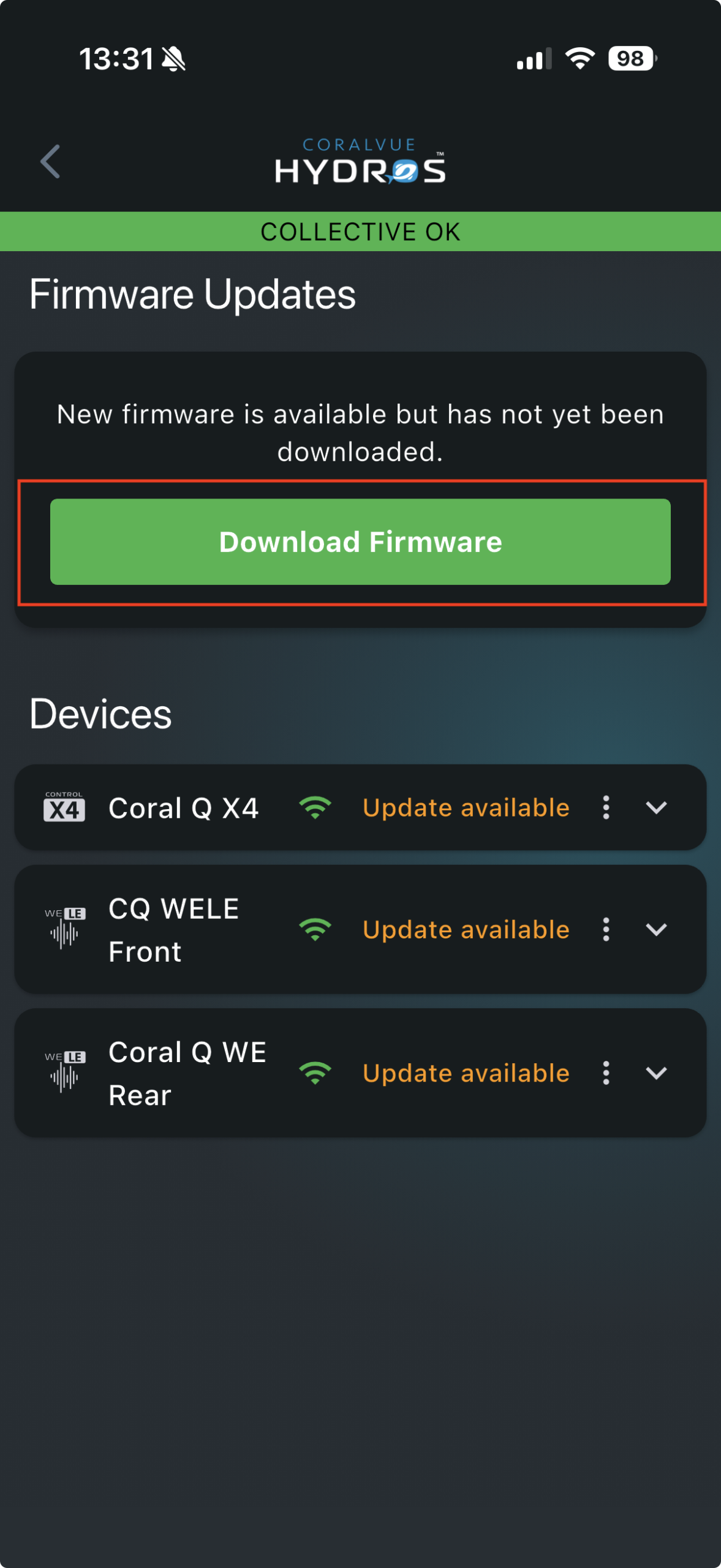
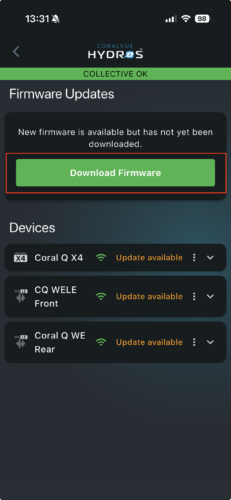
- Tap on the top green button to download the latest release version
TIP: . If you do not see the
- green button or it is grayed out, one of your devices is offline or not connected to Wi-Fi. Scroll down and power-cycle the faulty control. If power-cycling does not resolve the issue, try restarting your Wi-Fi router and access points (pods).
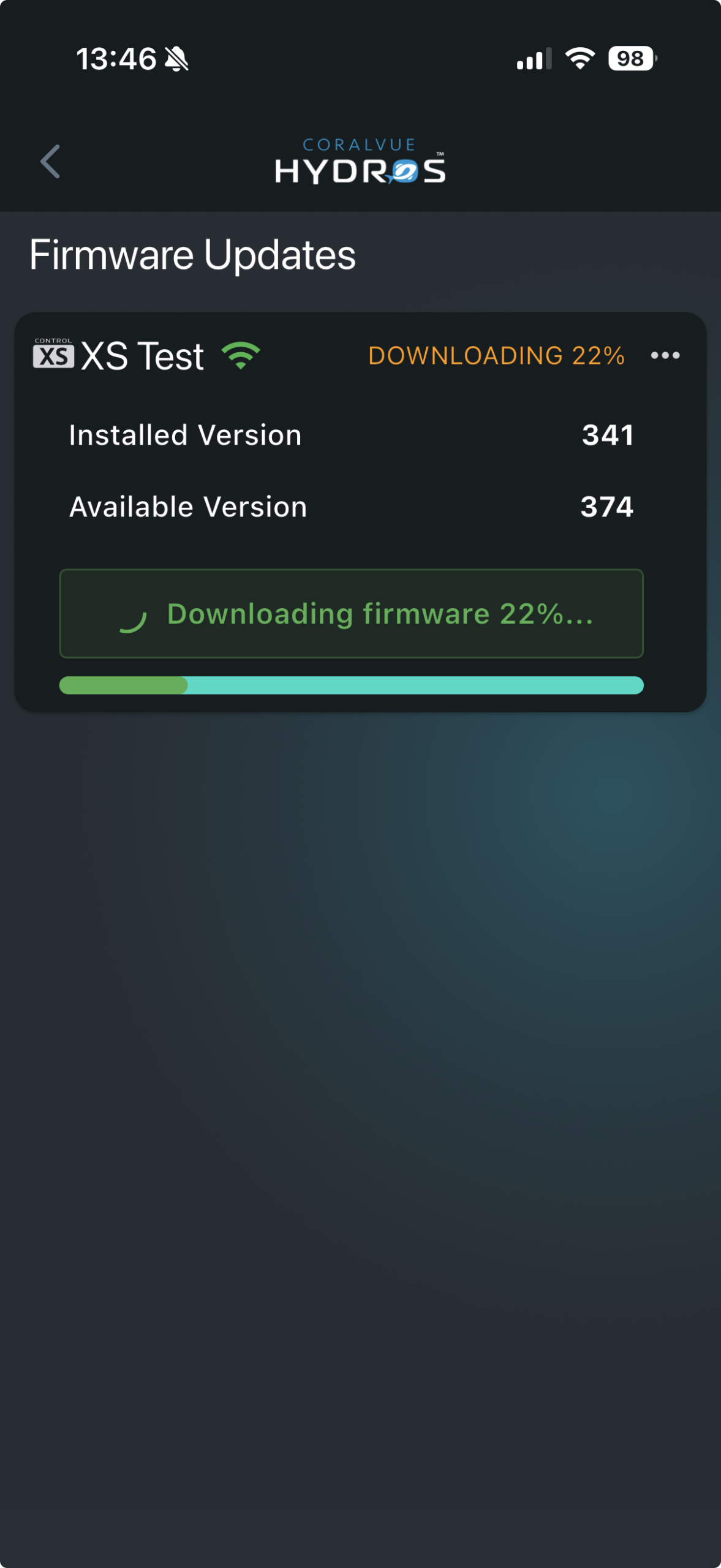
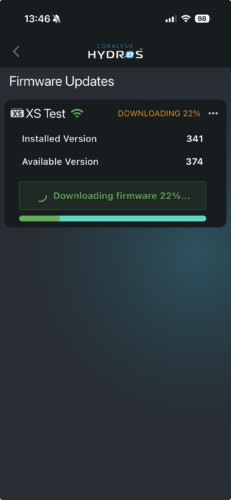
- Wait for the file to download fully.
Step 3: Install the Update
Once the file has been downloaded, you need to install it manually. This method is handy when you have multiple units to update. You can download all updates first and then install them simultaneously.
WARNING: DO NOT install firmware updates while you are away. ONLY install firmware updates when you are in the exact location as the unit
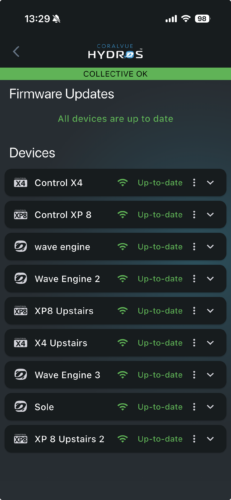
- Tap on the top green button to install the firmware version you just downloaded
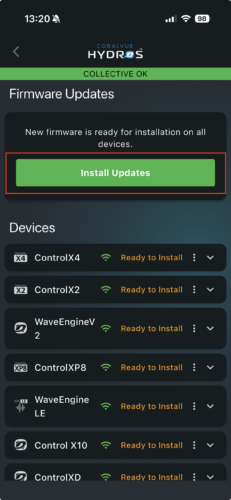
- The unit will restart with the new firmware version.
- Completely close the app and restart it to pull the latest data from the unit.
Step 4: Manually Power Cycle Devices
After installing new firmware, it is always good practice to manually power-cycle the device.
- Wait 2 minutes after installing the firmware.
WARNING: If you power cycle the units BEFORE the 2 minutes, your HYDROS will revert to the previous firmware
- Unplug the HYDROS Control from the power, wait 10 seconds, then plug it back in.
- Unplug your HYDROS WiFi Strips from power, wait 10 seconds, then power them on again.
Appendix A: Reverting to a previous firmware
If, for some reason, you need to revert to the previous firmware, follow these instructions:
Method A: App
- Tap on the upper-RIGHT-hand corner of the STATUS screen and select “Device Properties.”
- Scroll down and tap on “Firmware Update.”
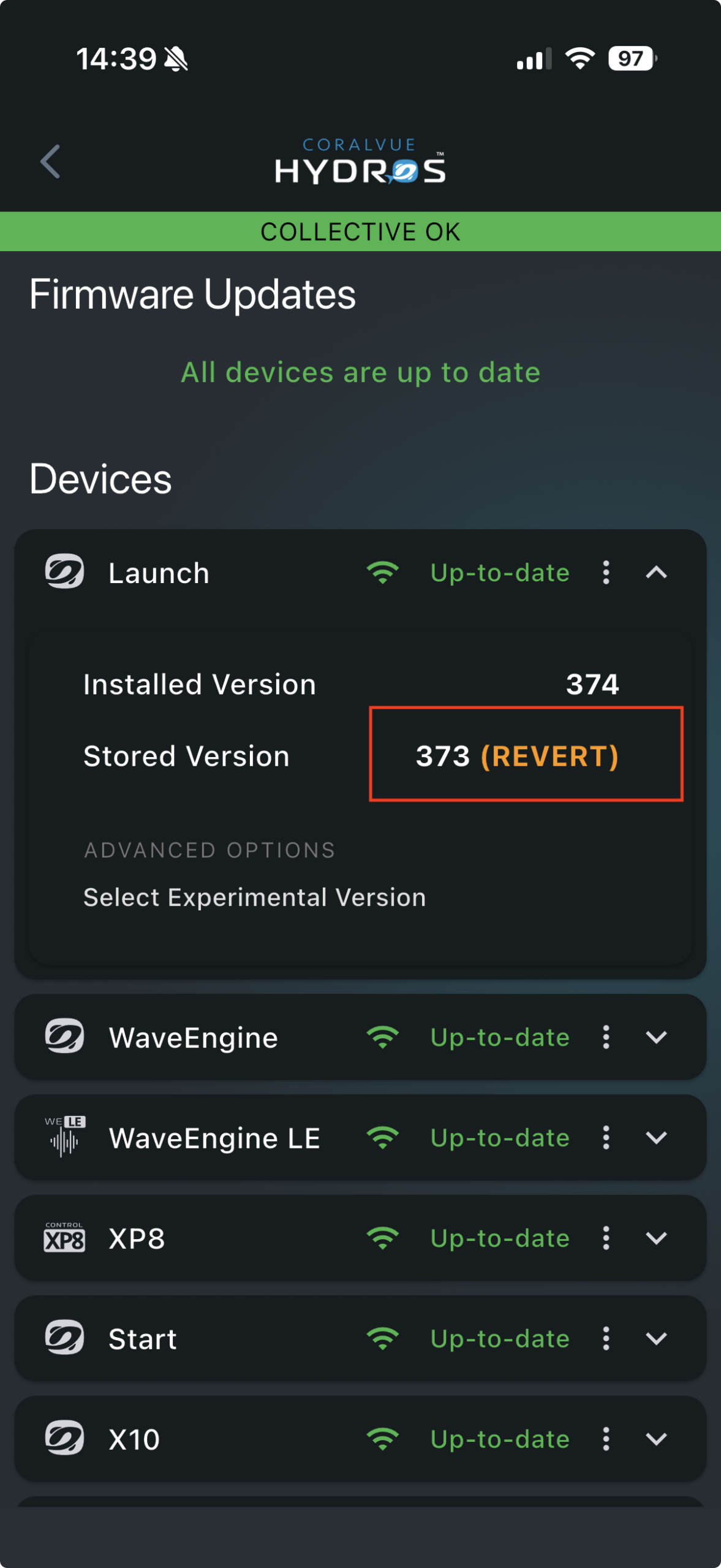
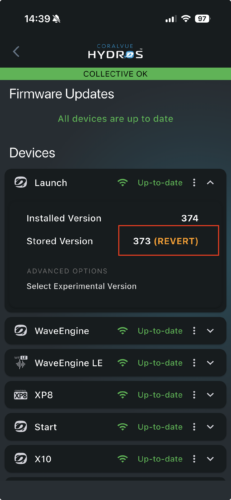
- Find the device you want to revert, tap the down arrow to the right, then tap REVERT.
- The unit will restart with the new firmware version installed.
- Completely close the app and restart it to pull the latest data from the unit.
Method B: Magnet
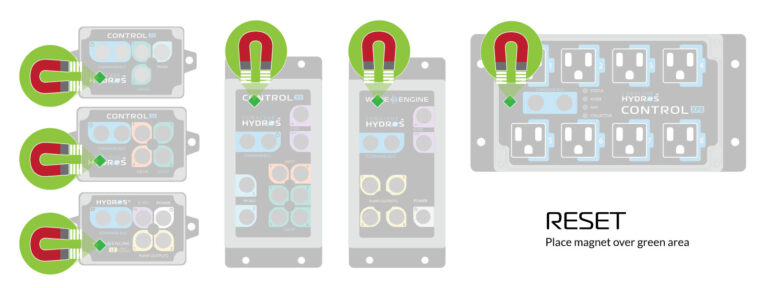
- Using a small magnet, place it:
-
- WaveEngine: On top of the letter A in the word WaveEngine
- Control 4: On top of the first instance of the letter “O” in the word Control
- Contro 2: Above the letters “RA” of the word CORALVUE located on the lower-left-hand-corner
- Control XP8: To the left of the Command Bus Ports.
- The HYDROS Device should turn the lights ON, showing rainbow colors followed by chasing green, then chasing yellow, then chasing RED.
- When you see chasing RED, remove the magnet
- Wait for the Control to restart, and it will revert to the previously installed firmware version.
Method C: IceCap WiFi Dual Pump Controller ONLY
- Using a small paper clip, insert it into the hole on the right side of the controller and firmly hold it in place without releasing it.
- The HYDROS Device should turn the lights ON, showing rainbow colors followed by chasing green, then chasing yellow, then chasing RED.
- When you see the RED light flashing, remove the magnet.
- Wait for the Control to restart, and it will revert to the previously installed firmware version.