When setting up your WaveEngine, make sure to use the included power adapter to ensure the right amount of power is going to the unit and prevent performance issues.
What you will need to get started
- WaveEngine
- Your Wi-Fi network name and password.
- Mobile device with HYDROS app installed
Step 1: Start the HYDROS App
- Start the HYDROS app and log in to your cloud account.
Step 2: Power up the WaveEngine
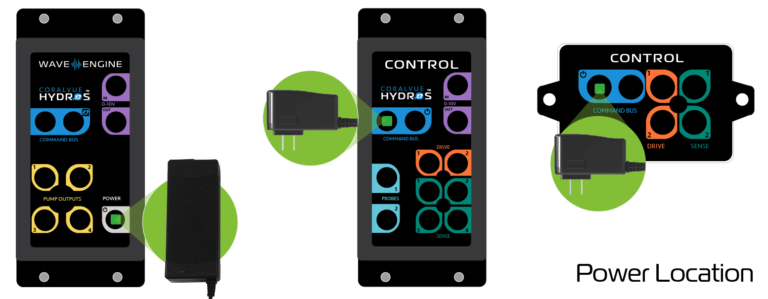
- Connect the power supply to the power port on the WaveEngine.
- Connect the power supply to power
After going through a sequence of colors, the WaveEngine LEDs should start breathing BLUE. If the WaveEngine does not breathe blue, based on the color of the LED lights, proceed to the APPENDICES below.
Step 3: Connect directly to the WaveEngine
- On the app, tap on the three horizontal bars on the upper left-hand corner.
- Tap on the small cloud icon to ensure your app is in Cloud mode and then tap on the plus sign to the right.
WARNING: If you DO NOT see the “Run WiFi Setup” button, please make sure that your phone’s font size is set to regular. If it is set to large, it may push the button down and off the screen. - Minimize the HYDROS app and connect your Mobile device to the WaveEngine’s WiFi signal.
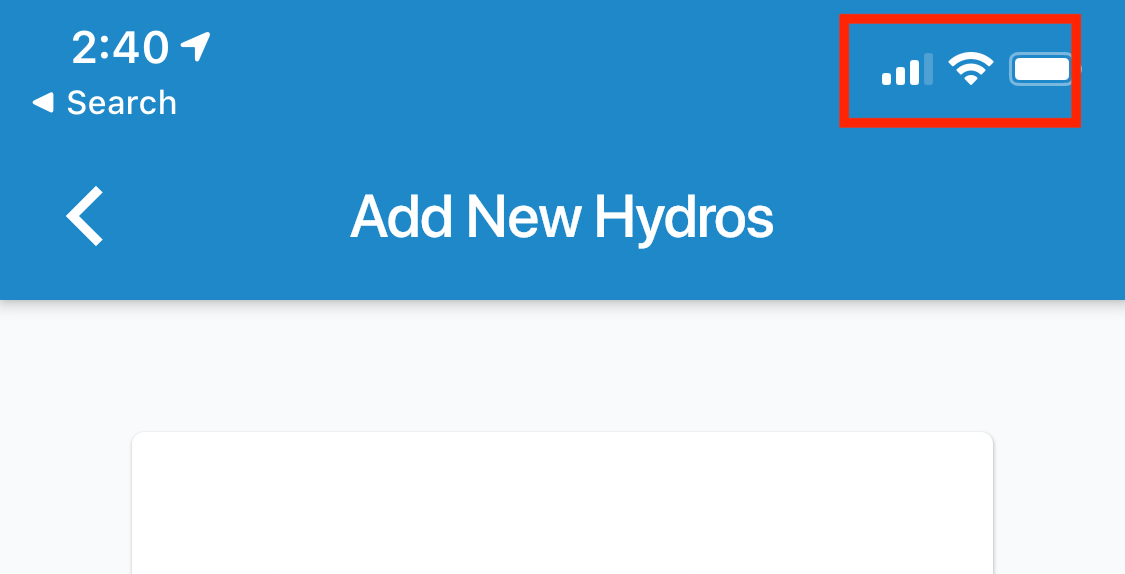
WARNING: If you are using an iPhone, please wait until you see the WiFi icon on the upper right-hand corner. It may take up to 60 seconds to establish a connection.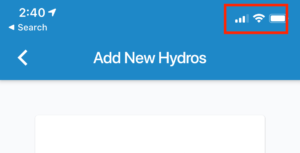 [2]
[2]
Step 4: Connect the WaveEngine to your WiFi network
- Return to the HYDROS app and tap on the Refresh button.
- Tap on the WaveEngine listed.
- Enter your WiFi SSID name, password, and the name you wish to give your new WaveEngine.
TIP: The WiFi SSID (name) is case sensitive, meaning that if your WiFi name is IcECaP, then you MUST type in IcECaP. Otherwise, it will not work. The same goes for the password.WARNING: Be sure to connect your WaveEngine to a 2.4GHz WiFi network. The WaveEngine is NOT compatible with a 5GHz WiFi. - Now tap on Submit.
- Wait for the WaveEngine to restart and then tap on Continue.
Your WaveEngine is connected to your home WiFi and your cloud account. You can now proceed to update your WaveEngine’s firmware [3].
Appendix A: WaveEngine restarted and breathing RED
If your WaveEngine reboots and starts breathing RED, it means that the WaveEngine could not connect to your WiFi using the credentials you entered. It could be the result of:
- You typed in an incorrect SSID or password.
- You tried to connect the WaveEngine to a 5GHz WiFi network.
To fix the problem:
- Restart the WaveEngine by unplugging the power supply cable DIRECTLY from the WaveEngine and wait for the lights to breathe BLUE.
If ALL the lights remain breathing RED, then proceed to do a YELLOW reset (Appendix B).
If ALL the lights turn YELLOW, then proceed to Appendix C below.
Appendix B: YELLOW Reset
- Place a small magnet on top of the letter “A” in the word WaveEngine.
- The WaveEngine should turn the lights ON, and it will show rainbow colors followed by chasing green, then chasing yellow.
- When you see chasing YELLOW, remove the magnet and allow the controller to restart.
- The controller will restart, and the STATUS LED will begin to breathe BLUE.
- Rerun Setup.
Appendix C: WaveEngine Restarted and Breathing Yellow
Sometimes, the setup may not complete correctly. Sometimes, the WaveEngine is successfully connected to your WiFi network, BUT it fails to register with the cloud. If this happens, do the following:
- Restart the WaveEngine by unplugging the power supply cable DIRECTLY from the WaveEngine and wait for ALL lights to breathe YELLOW.
- Make sure your phone is connected to your home WiFi and open the HYDROS app.
- Tap on the three horizontal bars on the upper left-hand corner to enter the main menu.
- To the right of the top icons, tap on the “Plus” symbol.
- In the “Configure HYDROS Device” page, scroll to the bottom and tap on the “Run WiFi Setup” button.
- Hit the “Refresh” button and then tap on your WaveEngine.
- On the WiFi configurations, DO NOT fill in any of the fields, scroll down and tap on “SKIP.”
- Tap on Continue on the next page, and the WaveEngine should start to register on the cloud.
If the connection is successful, the WaveEngine will restart and the LED lights will turn a combination of BLUE, YELLOW, and WHITE.